Overview
How to setup Okta Verify on your cell phone as a Multifactor Authentication Method (MFA) for your USI account
Before You Begin
You will need your cell phone with Okta Verify installed and a computer
You can download the Okta Verify app from the Apple App Store (iPhone) or Google Play Store (Android)
Steps
.
1. Login to USI by going to https://weblogin.usi.edu
2. After logging into your account, you will be prompted to set up Multifactor Authentication. Select "setup" on Okta Verify to configure

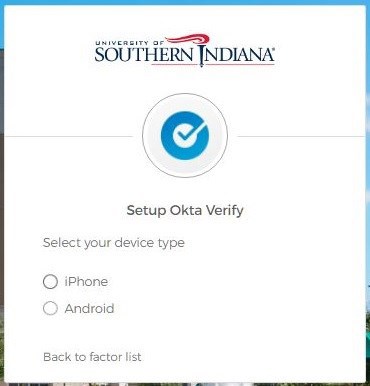
 3. Select your mobile device type
4. From your mobile device, download the Okta Verify app from the App Store or Google Play.
5. Launch the Okta Verify app
a. Click "add account"
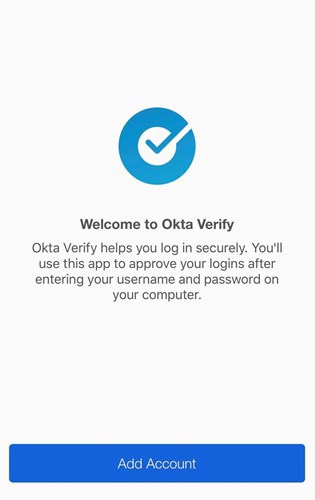
 b. Click "Continue"
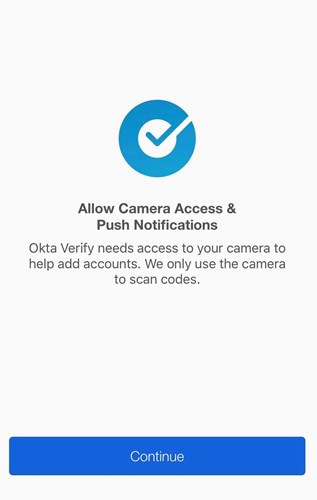
 c. When prompted, allow push notifications and access to camera
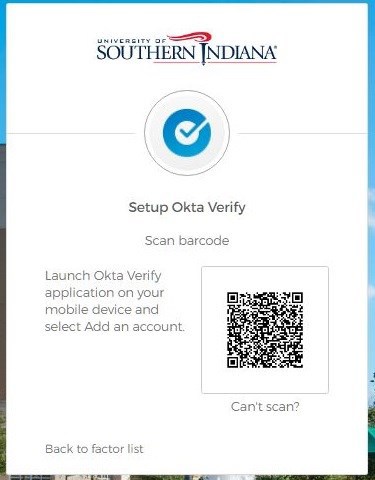
6. From your mobile device, scan the QR code visible on your computer.
 Your mobile device is now set up for MFA.
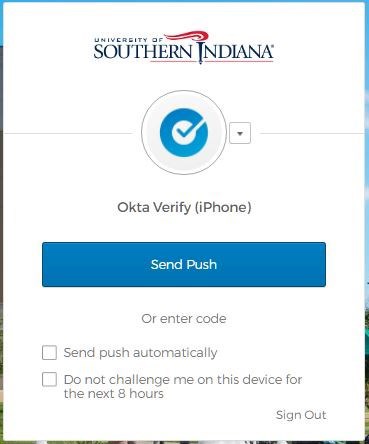
1. On your next login to myUSI or Office 365, you will be prompted with "Send Push" to the Okta Verify App. You can choose to select one or both of the checkboxes. Click on the Send Push button.
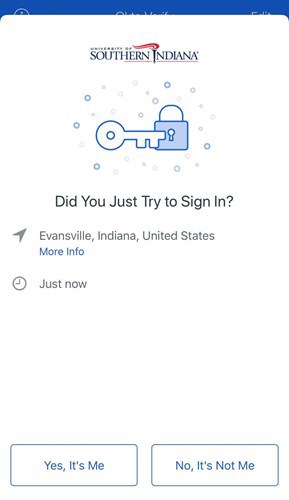
 2. On your mobile device you should receive a notification to approve the login. Pay attention to where this is coming from and never approve a request that you didn't initiate.

Additional Info
You can have more than one form of secondary authentication. USI recommends having more than one.